 LayoutKeeper™ for Windows
Monitor goes to sleep and all your windows move? The DisplayPort fix
Short answer: many monitors, especially on DisplayPort or USB-C, switch off so completely when they sleep that Windows thinks they were unplugged. Windows then moves their windows to another screen. Turning off the monitor's deep sleep, or letting Windows turn displays off later, usually stops it.
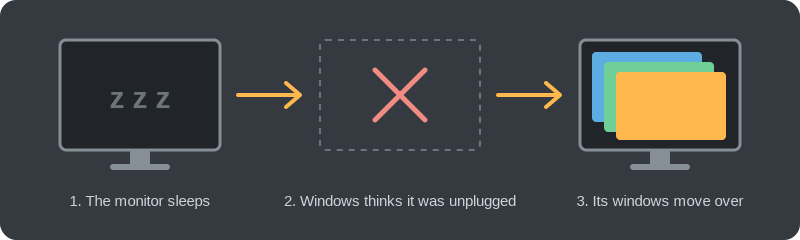
How to tell this is your problem
- Windows move when you come back to a PC whose screens went dark, but not when you never left.
- You hear the "device disconnected" sound when the monitors switch off or on.
- It happens on DisplayPort or USB-C, and not (or less) on HDMI.
Fixes, easiest first
- Turn off deep sleep in the monitor. Open the monitor's own on-screen menu with its buttons. Look for a setting called something like Deep Sleep, DP Deep Sleep, Auto Power Off, Eco or Auto Source. Names differ by brand; switch it off.
- Let Windows turn the screens off later. Settings > System > Power (Power & sleep on Windows 10): set "Turn off my screen" to a longer time, so it happens less often.
- Turn on the Windows 11 setting that remembers window locations (Settings > System > Display > Multiple displays). What it can and can't do.
- Try another cable or port. If your monitor has HDMI too, it often doesn't trigger the disconnect.
- Update the graphics and dock drivers from the PC or dock maker's site.
If windows still move
Some monitors can't be stopped from disconnecting. Then the practical fix is to have your windows put back after they move. A layout tool notices the monitor coming back and restores every window to its spot. See ways to save and restore window layouts.
More guides
- Why do my windows move to one monitor after sleep or undocking?
- How to make Windows 10 remember window positions on multiple monitors
- Windows 11 "Remember window locations" not working? What it does and doesn't do
- Desktop icons keep moving after you dock or undock? Here's the fix
- How to reopen your apps and windows where they were after a restart
- Laptop, dock and two monitors: a setup that keeps windows in place
- How to save and restore window layouts on Windows: free and paid options
- PowerToys Workspaces vs. automatic restore: which do you need?
- DisplayFusion alternative: when a simpler tool is enough
- How to open the same apps and documents every time you start Windows