 LayoutKeeper™ for Windows
Desktop icons keep moving after you dock or undock? Here's the fix
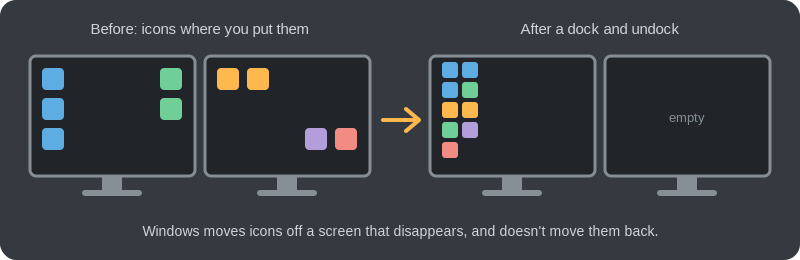
Short answer: when a monitor disappears, Windows moves the icons on it to a screen that's still there, and it doesn't move them back when the monitor returns. You can stop Windows from rearranging them, and you can put them back with a free tool.
First, check these two settings
- Right-click the desktop > View.
- Untick Auto arrange icons. While it's on, Windows decides where icons go and nothing can keep them in place.
- Tick or untick Align icons to grid to taste; it's fine either way.
Why the icons move
Icons are placed by position on your whole desktop, across all monitors. When a monitor goes away, its part of the desktop goes too, so Windows moves those icons into the visible area. It also does this when the resolution or scaling changes, for example when you connect to a projector or a TV.
Ways to keep them in place
- Reduce disconnects. Monitors that sleep on DisplayPort count as unplugged (fix); plugging into the same ports every time helps too.
- Keep important icons on the main screen, which never disappears.
- Use folders or the Start menu for things you open daily.
- Let a tool put them back. LayoutKeeper saves where your icons are on each monitor and puts them back when monitors change and after you sign in. Putting icons back stays free, even after the trial.
More guides
- Why do my windows move to one monitor after sleep or undocking?
- How to make Windows 10 remember window positions on multiple monitors
- Windows 11 "Remember window locations" not working? What it does and doesn't do
- Monitor goes to sleep and all your windows move? The DisplayPort fix
- How to reopen your apps and windows where they were after a restart
- Laptop, dock and two monitors: a setup that keeps windows in place
- How to save and restore window layouts on Windows: free and paid options
- PowerToys Workspaces vs. automatic restore: which do you need?
- DisplayFusion alternative: when a simpler tool is enough
- How to open the same apps and documents every time you start Windows